Add a WAF exception in the dashboard
1. Go to the zone or account dashboard page
To add a WAF exception at the zone level:
- Log in to the Cloudflare dashboard, and select your account and domain.
- Go to Security > WAF > Managed rules.
- Select Add exception.
To add a WAF exception at the account level (Enterprise plans only):
- Log in to the Cloudflare dashboard, and select your account.
- Go to Account Home > WAF > Managed rulesets.
- Select Deploy > Deploy managed exception.
2. Create the WAF exception
-
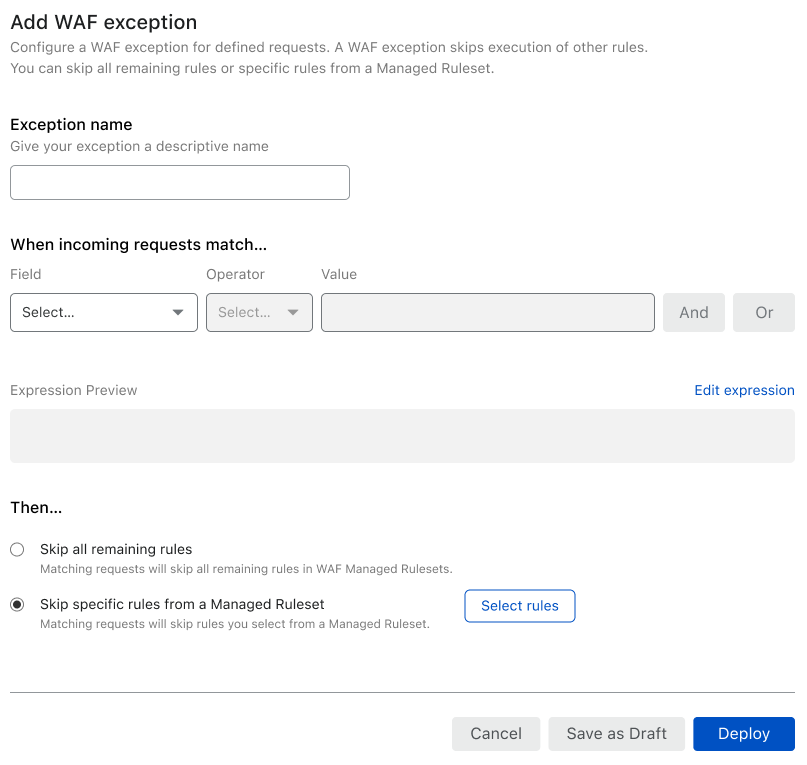
In the exception creation page, enter a name for the exception.
-
In When incoming requests match, specify a filter expression that defines the conditions for applying the WAF exception. The filter expression uses the Rules language.
-
In Then, select the exception type that determines which rules to skip:
- Skip all remaining rules — Skips all remaining rules of WAF managed rulesets.
- Skip specific rules from a Managed Ruleset — Select Select rules to select the specific rules to skip. Learn more about searching and selecting managed ruleset rules.
-
(Optional) To disable logging for requests matching the WAF exception, disable Log matching requests.
-
To save and deploy your exception, select Deploy. If you are not ready to deploy your exception, select Save as Draft.